Version Control for Power BI Model Using the TMDL View
The TMDL view is a recent addition to Power BI that has significantly improved the workflow of report developers. It enables you to write, modify, and apply scripts to semantic model objects directly within Power BI Desktop using a modern code editor powered by the Tabular Model Definition Language (TMDL). This approach greatly enhances development efficiency while giving you full visibility and control over your semantic model metadata.
The TMDL view offers an alternative way of working with semantic models: instead of relying solely on the graphical interface (such as the Model view), you can work directly in code providing greater flexibility and precision.
This blog post walks through how you can manage model versioning using the TMDL view.
Why Create a New Model Version?
Imagine you need a new version of your report model – for example, replacing Test tables with Production tables, updating measures, or applying structural changes. Ideally, you’d like to maintain both the old and the new versions within a single file, without having to save multiple copies of the report.
This is exactly where the TMDL view becomes incredibly useful.
Step 0: Enabling the TMDL View
To use the TMDL view:
Update Power BI Desktop to the January 2025 version or later
Go to File > Options > Preview Features and enable TMDL View
Restart Power BI Desktop
Open the TMDL View from the left-hand panel
Drag a table into the editor and start working with the TMDL script
Step 1: Create a Backup of Your Model
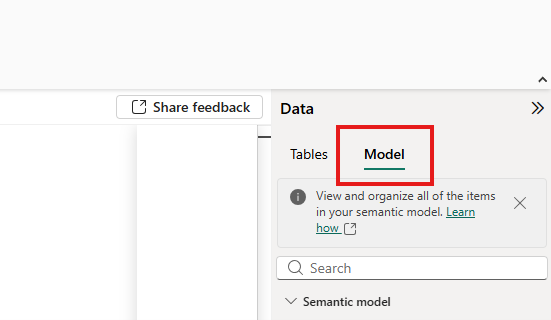
Open the TMDL View tab, then switch to the Model tab under the Data section.
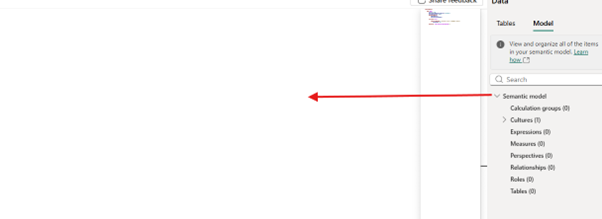
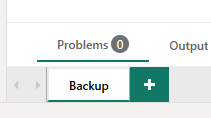
Drag the Semantic model into the editor and rename the script tab to Backup.
This tab will now contain the full original TMDL code of your report model, allowing you to revert to it at any time.
Step 2: Create a New Model Version
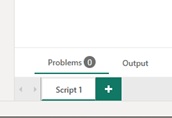
Create a new script tab using the Plus icon. Give it a descriptive name that reflects the type of modification you plan to make.
Drag the Semantic model into this new tab as well.
The built‑in CTRL+F (Find) and CTRL+H (Replace) shortcuts work here too, making it easy to locate the sections you want to modify or even perform bulk replacements.
Apply the necessary changes. Thanks to the TMDL view, you can work entirely in code without switching between multiple visual views.
Step 3: Preview and Approve Changes
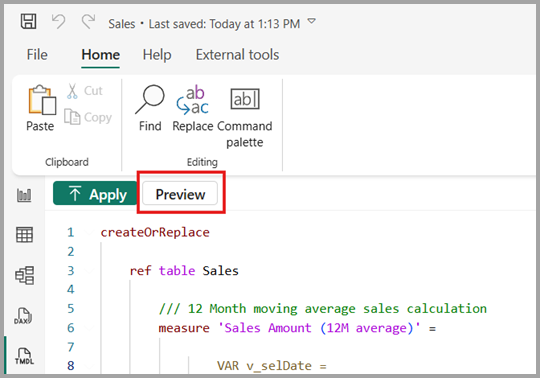
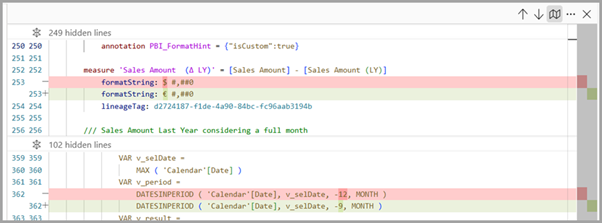
Before applying your modifications, use the TMDL view’s Preview feature to compare the original lines with the updated ones. This allows you to validate your changes with confidence.
Once everything looks correct, click Apply to commit the new model version.
Step 4: Revert to the Original Version
If you ever need to revert to the original model, simply switch back to the Backup tab and click Apply.
The original TMDL code will be restored, and your model will return to its initial state.
Example Use Cases
Maintaining both test and production versions You may need to publish both versions separately but prefer to maintain only one report file. With TMDL, you can keep Test and Prod model definitions in separate script tabs.
Bulk formatting updates If your report contains many measures with similar format string patterns, you can experiment with new formatting while preserving the old version and apply bulk replacements efficiently.
Switching between Import and DirectQuery Normally, once a table is set to Import mode, you cannot revert it to DirectQuery. With the TMDL view, this becomes possible.
Additional Tips
Format your TMDL code using Shift + Alt + F or the Format button in the ribbon.
When saving your work as a Power BI Project (PBIP), you gain direct access to your semantic model metadata as TMDL files.
Summary
The TMDL view introduces a powerful, code‑first way to manage semantic models in Power BI. By keeping multiple model versions in script tabs, you can safely experiment, apply bulk changes, switch connectivity modes, and revert to earlier states with ease. This approach streamlines version control, boosts development efficiency, and gives you full transparency over your model’s metadata all within a single Power BI file.
Author of the post:
Ádám Ujvári - Senior Data Analyst at Abylon Consulting.
Linkedin Profile
We use cookies on our website to improve your browsing experience. By clicking “Accept”, you consent to the use of all these cookies. However, you may visit "Cookie Settings" to provide a controlled consent. Cookie settingsACCEPT
Privacy & Cookies Policy
Privacy Overview
This website uses cookies to improve your experience while you navigate through the website. Out of these cookies, the cookies that are categorized as necessary are stored on your browser as they are essential for the working of basic functionalities of the website. We also use third-party cookies that help us analyze and understand how you use this website. These cookies will be stored in your browser only with your consent. You also have the option to opt-out of these cookies. But opting out of some of these cookies may have an effect on your browsing experience.
Necessary cookies are absolutely essential for the website to function properly. This category only includes cookies that ensures basic functionalities and security features of the website. These cookies do not store any personal information.
Any cookies that may not be particularly necessary for the website to function and is used specifically to collect user personal data via analytics, ads, other embedded contents are termed as non-necessary cookies. It is mandatory to procure user consent prior to running these cookies on your website.
Liked this post? Subscribe to our newsletter!
Technical insights, tips, tricks and news!
Please provide your name and email to access the full package details.
Please provide your name and email address to download the whitepaper